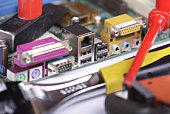
yourself. Just a little common sense may help you solve some simple hardware and software
problems. If you do decide to call technical support, remember to write down the problem and what
you were doing when it occurred. And also take note of any error messages.
Tips For Computer Repairing:
1. You should check the electric power outlet. You can plug a small lamp into the same power
outlet that's connected to your computer to make sure the outlet is working. If you have a PC
power switch box reset it, most have a reset button on them.
2. Try restarting your computer. Many software problems will automatically correct themselves when
you restart your system (reboot). If your computer is frozen shut it down if you can't turn the
power off on the computer. Then restart after one minutes and run scandisk on your computer.
3. You should check all of your cables on the back of you system. If your keyboard is not working.
You should make sure it's plugged in, sometimes unplug it and replug it helps. If your mouse isn't
working, make sure it's plugged in also. Take a look at the mouse ball make sure the ball is
clean, also if your mouse uses batteries make sure the batteries are charged and new.
4. Disconnect all peripheral devices (such as a printer or external Zip disk) and restart the your
computer. You should listen for unusual sounds. Can you hare the hard drive making noises? Are the
fans running? Are the lights on the PC and the monitor.
5. Make the sure the power is off and your computer is unplugged. Then you can look inside your
computer for wires that aren't plugged in all the way. Some cards (video, sound, network) need to
be removed then reinstalled. Try starting Windows in safe mode by hit the F8 key at boot-up. You
can also try starting your computer from an boot disk (start-up disk), you don't have one? make
sure you have one put in a save place!
6. If Windows can't find a device (CD-ROM - Modem, act.) go to the start > settings > control
panel, and double-click the system icon, and click the Device Manager tab. If your new drive is
shown with an exclamation point " !" next to it, right click on your new drive and delete it.
Windows will ask you to reboot, then reboot windows this time windows should find your new drive.
7. Did you install new software or new hardware like a new video card? That can be the problem,
think what did you install or change before the problem started. You can try uninstall or removing
the software and or hardware from your pc. Try to get your PC back to the point before you
installed or made changes to your system.
If Still It's not Working Then you have to call the computer repair tech service.
Peter
www.smileit.com.au
Repair Your Own Computer
When the computer was newer it wasn't like that. Everything loaded quickly in a fraction of the time it takes now. What is wrong? Well over time the computers registry has become bloated with a lot of useless bits and pieces of information. This slows down the operating system as it picks its way through the maze of fragments of data. Usually this is accompanied by freezing problems also. The answer is to clean your registry and remove all the material which is not needed.
What is the computer registry? Well,simply put,it is a data base of information which the operating system uses to run the computer and perform the tasks you ask of it. Over a period of time the registry becomes contaminated with fragments of programs which were not properly and completely uninstalled. There will also be parts of programs which were never completely installed,dead drivers which are no longer needed and many other bits and pieces from various sources. Spyware may also be present and harming the performance of your computer.
A good registry cleaning program is needed to correct these problems. There are many registry cleaning programs on the market and after sampling most of them we have come to some conclusions as to which is best. Some of them offer a free scan of your computer. This is done with no obligation and will tell you what has to be done to get your computer back to full speed. You can then decide whether to use the registry cleaning application or to remove the material manually yourself.
If you have sufficient computer skills you can go into the registry yourself and remove the offending material. But a solemn warning is in order here. Unless you know exactly what you are doing be very careful about what you delete from your registry. You can very easily remove vital parts of various programs which may be shared with other applications. You can in fact completely disable your computer if you remove some data needed for its operation. This is not a simple job for someone who has little idea of what is in the registry and what must remain there. Far better to use a registry cleaning application which is safe and will remove only unecessary material.
A good registry cleaning program will begin by backing up your registry so that it can be restored if anything goes wrong. It will then remove duplicate files,program fragments,dead drivers,unused shortcuts,spyware,invalid paths and fonts,invalid file types and much more. The end result will be a computer which is restored to full speed and no longer freezes continually. What a relief to get your computer back to the great performance it once had in earlier days. We have found a program we believe to be the best of them all and recommend it to you. The saving in time and annoyance is well worth it.
Both Bobby Reynolds & John Mowatt are contributors for EditorialToday. The above articles have been edited for relevancy and timeliness. All write-ups, reviews, tips and guides published by EditorialToday.com and its partners or affiliates are for informational purposes only. They should not be used for any legal or any other type of advice. We do not endorse any author, contributor, writer or article posted by our team.
Bobby Reynolds has sinced written about articles on various topics from Wedding Bells, Marriage and Wedding Bells. Peter Drummond www.smileit.com.au. Bobby Reynolds's top article generates over 1300 views. to your Favourites.
John Mowatt has sinced written about articles on various topics from Family, Health and Family. You have a slow running,freezing computer?Don't waste all that time waiting for it to get going! You can correct the problem very easily and quickly. To get a free computer scan which will tell you what the problems are and how to correct them just click. John Mowatt's top article generates over 40500 views. to your Favourites.
Contact Lenses Blurred Vision Using corrective contact lenses under the care of a contact lens specialist will ensure you are minimizing any chances of causing damage to your eyes